You can install ExpressVPN on Firestick and access over 850 live channels in just a few minutes! This tutorial will guide you through getting the ExpressVPN app on your FireStick 4K, Fire TV Stick Lite, and Fire TV Cube. With its fast speeds and top-notch security, ExpressVPN is perfect for unblocking geo-locked streaming services and keeping your viewing activity private.
After thoroughly testing, I found that ExpressVPN consistently ranks as the best option for Firestick. Its custom-made app for Amazon Fire TV devices is a lightweight VPN app that enhances your streaming experience by eliminating geo-restrictions and ISP throttling. Also, during my VPN reviews, whether I watched Netflix, Hulu, or Disney+, this VPN let me stream HD content without buffering.
Key Takeaways:
- Performance Enhancement: ExpressVPN improves Firestick by unblocking content and circumventing ISP throttling.
- Installation Guide: Step-by-step tutorial to install it on FireStick and other Fire TV devices.
- Troubleshooting: Solutions for Hulu not working with ExpressVPN on Fire stick, like checking ad blocking.
- Comparison with Other VPNs: Table comparing features of ExpressVPN, NordVPN, and Surfshark.
How To Install ExpressVPN on FireStick? [Quick Steps]
Follow these simple steps to install ExpressVPN on FireStick. You can also install it on Amazon Fire TV by following the same directions:
- Begin by subscribing to ExpressVPN.
- Go to the magnifying glass in the top left corner of the Home screen to open the search bar.
- Search for “ExpressVPN” and choose the first result.
- Click the yellow Get” button to download and install the app.
- Once installed, click the yellow Open” button to launch the app.
- If you already have an account, select Sign in.”
Get ExpressVPN on FireStick 30 Days Money Back Guarantee
Setting Up ExpressVPN on FireStick? [Detailed]
ExpressVPN is available on the Amazon app store, so installing ExpressVPN on Fire Stick devices is no trouble. You can even sideload the ExpressVPN app if you cannot access or find the right app on the Amazon App Store. We’ll teach you both methods on how to get ExpressVPN on FireStick:
Method 1: Install ExpressVPN on FireStick From the Amazon Store:
Step 1: Purchase ExpressVPN or try its free trial. Click the Search icon from the FireStick Home screen (magnifying glass icon on top left corner).
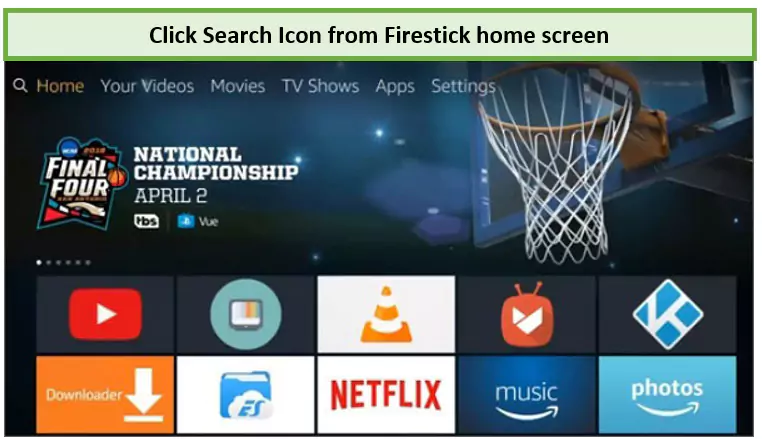
The search icon can be found at the top left of the FireStick home screen.
Step 2: Enter “ExpressVPN” in the search field and click on it.
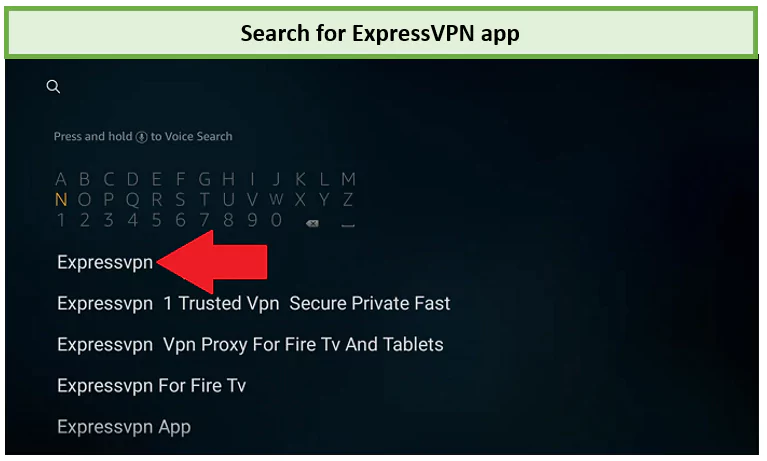
Search for the ExpressVPN app.
Step 3: Select “Download” or Get” to download and install the ExpressVPN app.
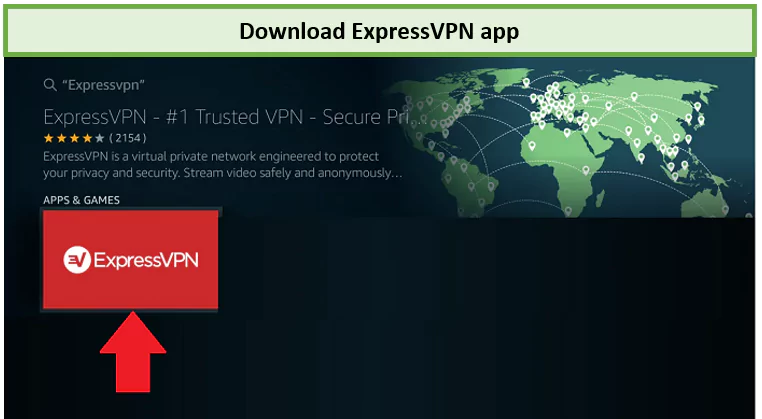
After locating the ExpressVPN app, download it to your device.
Step 4: Launch ExpressVPN by Clicking on “Open.”
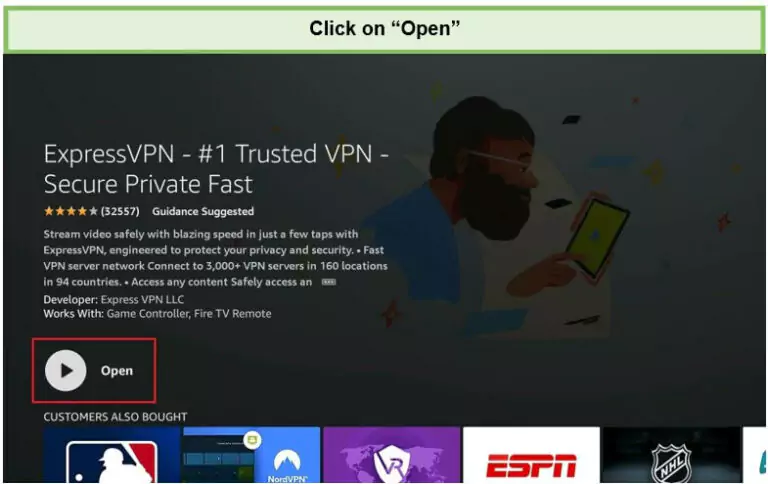
Launch the app by using the Open” button.
You will now have to set up your account on ExpressVPN or sign up for a risk-free trial to connect to any VPN server location and enjoy unrestricted access to services like Netflix.
You can refer to the guide to learn how to use the ExpressVPN Netflix combo.
Get ExpressVPN on FireStick via Amazon Store 30 Days Money Back Guarantee
Method 2: Sideloading the ExpressVPN on FireStick TV or Fire TV
This method applies to those who couldn’t find ExpressVPN on the Amazon store. You can download and install the ExpressVPN APK file in this case scenario. Here’s how to set up FireStick:
- Access the FireStick’s settings” and then navigate to device.” To sideload the ExpressVPN APK, go to the Amazon Fire TV Stick settings and choose device.”
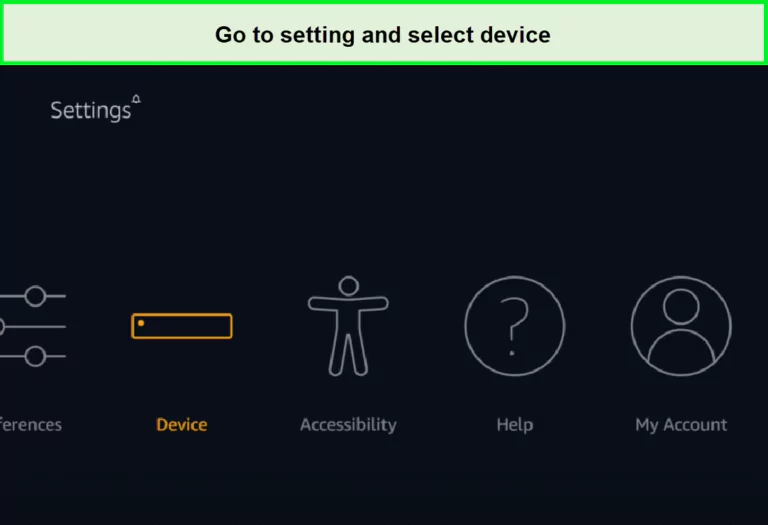
The Firestick settings screen is within the device” menu.
- Activate ADB debugging” by accessing the developer options. Next, within the developer options,” switch both apps from unknown sources” and ADB debugging” to the on” position.
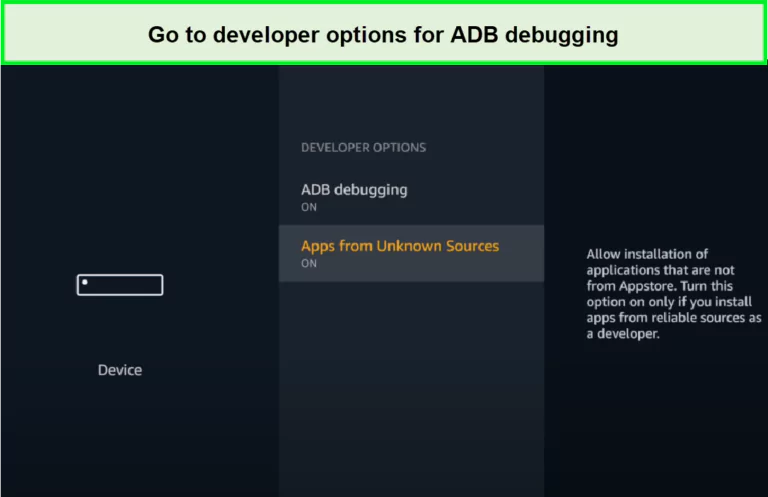
Both developer options have been activated.
- Download and launch the downloader” app. Return to the FireStick home screen, click the search icon, and look for downloader.” Choose download” to acquire the downloader app.
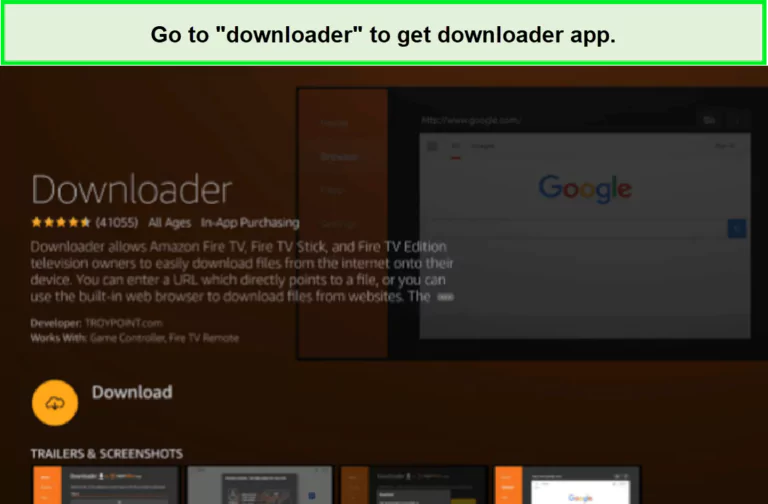
The page for the downloader” application.
- Acknowledge the permissions request. Following the installation, select open.” When prompted, grant the downloader” permission to access your photos, media, and files.
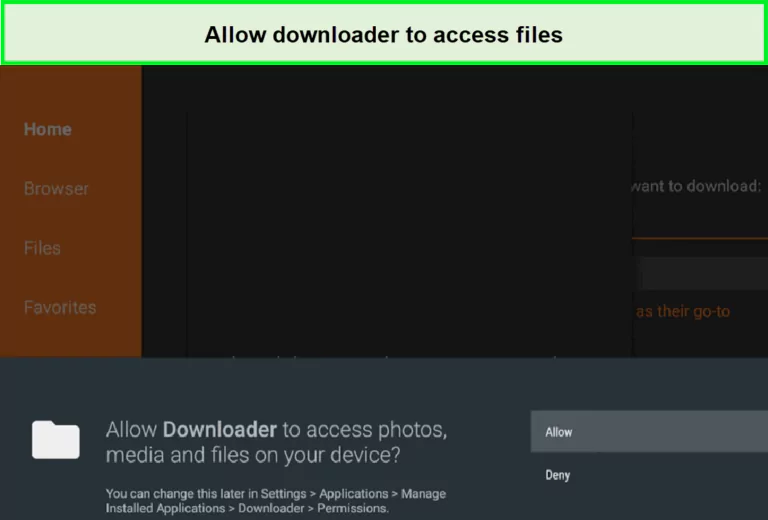
Granting downloader” permission to access files.
- Input the ExpressVPN APK’s URL and proceed with the installation. Enter the ExpressVPN APK’s URL, click go” to initiate the download, and then select install” to confirm your choice.
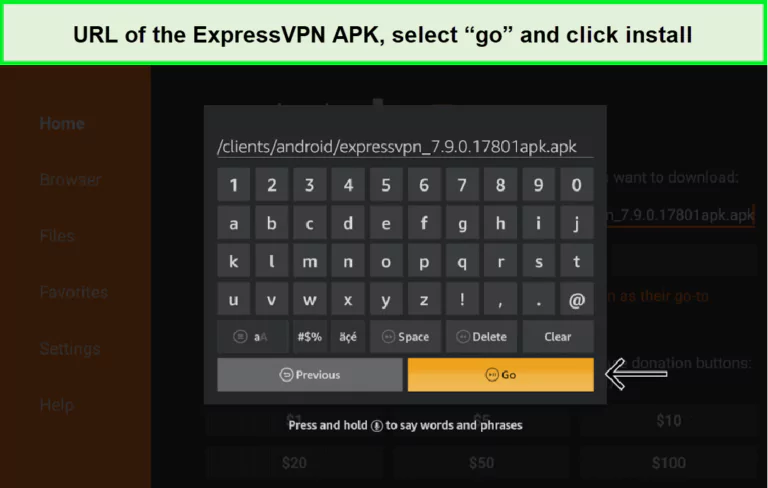
Inputting and deploying the APK.
Get ExpressVPN on FireStick via Sideloading 30 Days Money Back Guarantee
Step by Step Video Tutorial on How to Install ExpressVPN on FireStick:
Watch this step-by-step video tutorial to install ExpressVPN on your FireStick easily. Follow along to set up the app and start streaming without restrictions.
Benefits of Using ExpressVPN on FireStick
ExpressVPN offers many benefits when used with a Firestick. It’s not just about unblocking content—it’s also about maintaining speed, privacy, and ease of use.
I found ExpressVPN’s super user-friendly interface and extensive server locations incredibly beneficial for all my devices, especially Firestick. This convenience is something I personally value, as it ensures reliable connectivity and a seamless experience.
Various other users have echoed similar sentiments, further reinforcing my belief that ExpressVPN is an ideal choice for those who prioritize ease of use and consistent performance.
Here are several compelling reasons why you should opt for ExpressVPN as your Amazon Fire Stick VPN:
Offers Excellent Speeds:
Speed is essential for streaming, especially when using Firestick to watch your favorite shows or movies in high definition. ExpressVPN for FireStick is a killer combination, offering exceptional speed that sets it apart as one of the fastest VPNs available. With a network spanning over 105 countries, ExpressVPN is optimized for speed. This ensures a seamless streaming experience in HD and 4K.
In my experience, I’ve frequently used ExpressVPN to watch baseball games and bypass blackout restrictions on my Firestick. And honestly, I’m impressed by how well it maintains streaming quality, even after restarting FireTV. I, along with other users, have also noticed that whenever the FireTV or the VPN disconnects, ExpressVPN quickly provides fresh IP addresses, ensuring uninterrupted access.
Whether streaming videos or downloading files, ExpressVPN server speeds guarantee a flawless, lightning-fast internet experience.
Easily Unblocks Geo-restricted Streaming Services:
Using ExpressVPN on FireStick offers the advantage of quickly unblocking geo-restricted content. ExpressVPN stands out among the best VPNs for FireStick, which effortlessly provides access to popular streaming services like Netflix, BBC iPlayer, and more.
By creating an account and installing the VPN, you can connect to a server of your choice, change your Netflix region to another, such as a US IP address, and effortlessly unblock ExpressVPN FireStick Netflix libraries from multiple countries, including the US, UK, Canada, Netherlands, Germany, Japan, India, and more.
Offers Reliable Security and Privacy Protection:
Using ExpressVPN on FireStick offers enhanced security as one of its key benefits. ExpressVPN incorporates advanced security and privacy features like an ExpressVPN kill switch, DNS/IP leak protection, the ExpressVPN Threat Manager, and robust AES 256-bit encryption.
You can enable the developer mode of FireStick and explore the FireStick developer settings to install third-party apps and optimize your streaming experience. Moreover, it strictly adheres to a no-logs policy, ensuring your privacy remains intact. Also, its No Log policy is validated by the KPMG, making it one of the most reliable VPNs.
Easy to Use:
In addition to offering cutting-edge features like a Network Lock Kill Switch and VPN Split Tunneling, ExpressVPN maintains a smooth and user-friendly app interface that makes it very easy to use ExpressVPN on FireStick.
Dedicated IP:
Tired of getting blocked by sites or hitting frustrating CAPTCHA walls? With ExpressVPN’s Dedicated IP, you’ll have a unique address just for you, removing the hassle of shared IP conflicts. This feature offers a faster, more reliable connection that still keeps your online identity safe, whether you’re accessing restricted services or managing sensitive tasks.
Get ExpressVPN on FireStick 30 Days Money Back Guarantee
Why is My Fire Stick Not Working with ExpressVPN?
If your Firestick is not working properly with ExpressVPN, it’s important to understand that, like any technology, there can be hiccups. Here are a few ways to fix this issue:
- Ensure ExpressVPN is properly installed and configured.
- Try connecting to a different server location.
- Check your internet connection.
- Update the Fire Stick and ExpressVPN app.
- Restart your Fire Stick.
- Experiment with different VPN protocols in the settings.